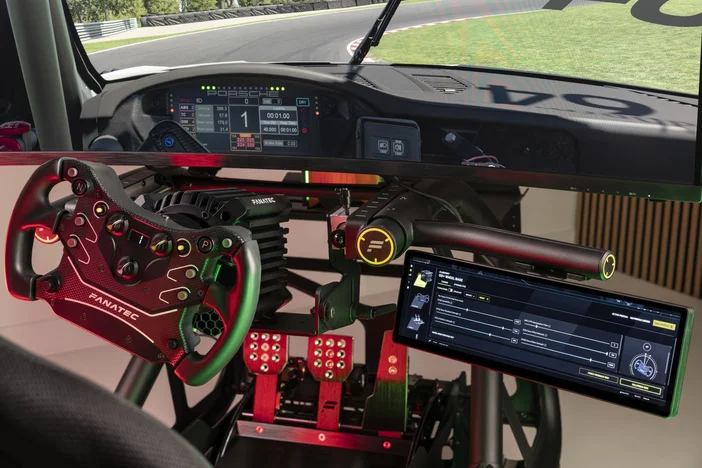
An additional layer of interaction for your setup
Modern sim racing setups can extend beyond wheel, base, and pedals, depending on how much information and control you want within reach.
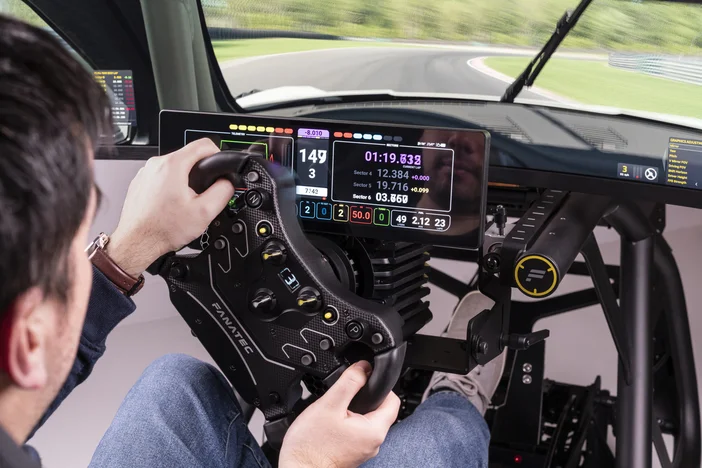
With its 14.5-inch ultrawide format and 2560x720 resolution, the CORSAIR XENEON EDGE, now available through the Fanatec website, offers an additional display that can be integrated into your rig as a secondary dashboard or touchscreen button box. Many Fanatec steering wheels provide integrated LEDs, displays, and plenty of inputs, but something like XENEON EDGE or Stream Deck can complement those features where more flexibility is needed.
Installation
There are two approaches to using the XENEON EDGE in a sim racing setup.
Using the SimHub widget in iCUE (recommended) - Corsair’s iCUE software includes a dedicated SimHub widget, allowing an intuitive way to manage different layouts of dashboards or virtual buttons, and you can easily run other widgets alongside SimHub.
Using XENEON EDGE as a dedicated display - The XENEON EDGE can also function as a standard monitor, with SimHub dashboards assigned to it.
Using the SimHub widget in iCUE:
- Make sure iCUE and SimHub are installed and fully updated.
- Open SimHub and iCUE.
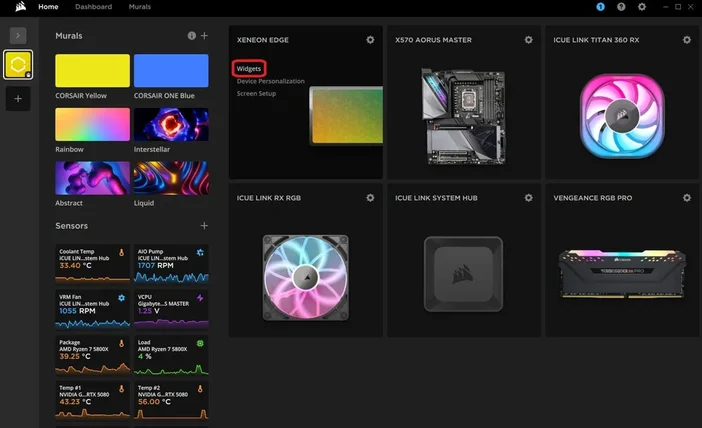
- From the iCUE home page hover over the XENEON EDGE module and click “Widgets”
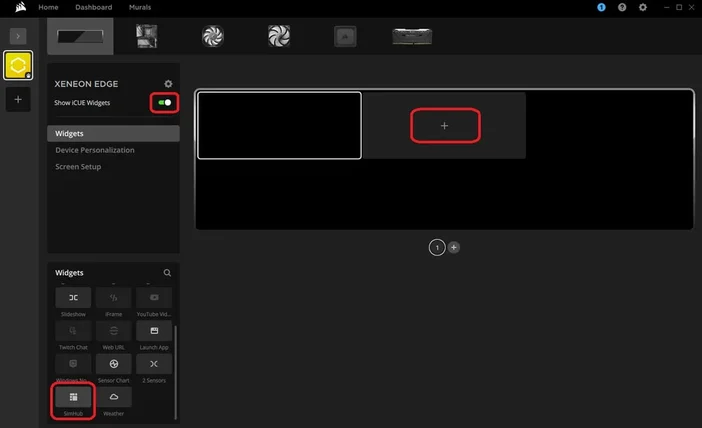
- In here, toggle “Show iCUE Widgets” on and click the empty “+” box on the currently-blank preview.
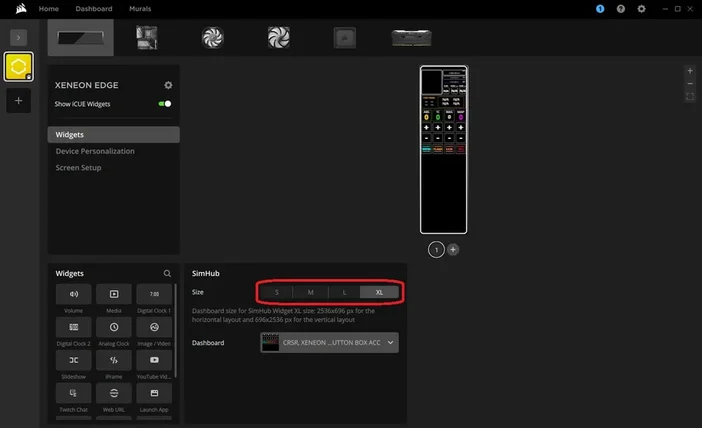
- Now scroll down in the menu on the bottom left until you find “SimHub” and click it.
- After this, the widget will appear onscreen, and you can choose the size and which dashboard you want to use.
Depending on your chosen dashboard, positioning the XENEON EDGE vertically could be the superior orientation. Out of the box it will automatically change the orientation of the screen to match the orientation of the XENEON EDGE. Otherwise, you can manually change it by going into the settings, toggling “Auto Rotation” off, and select the preferred orientation from the dropdown menu.
NOTE: The free version of SimHub is limited to 10 fps. Buying a licensed version enables 60 fps, which improves smoothness and responsiveness of dashboards.
Designed for Fanatec setups
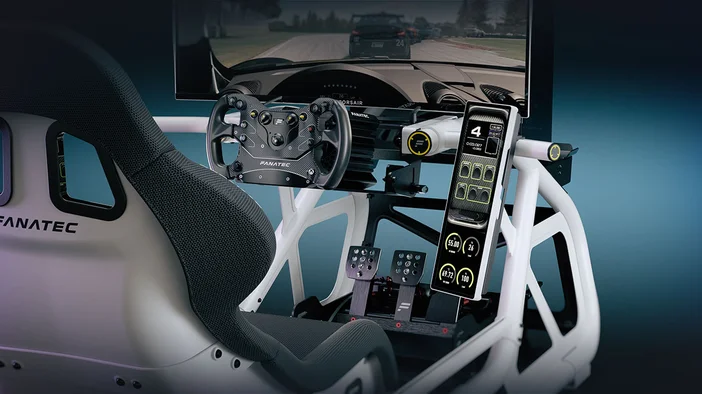
For sim rigs, integration is straightforward through dedicated mounting options.
The XENEON EDGE Mounting Bracket Set allows installation directly onto:
- Fanatec wheel bases as an ultrawide dashboard
- The ClubSport GT Cockpit Accessory Mount or aluminum profile rig in portrait or landscape orientation
The portrait option is particularly effective for creating virtual button boxes or a combination of buttons and a display, positioned similarly to the center console of the vehicle.
A flexible addition to your cockpit
The XENEON EDGE is an infinitely customizable extension to your sim racing setup.
It can be useful for:
- separating telemetry from your main screen
- adding touchscreen inputs without changing your wheel setup
- creating sim-specific layouts that go beyond built-in displays
For a more detailed explanation of how to create a custom dashboard or button box for XENEON EDGE, read this article.
PRODUCTS IN ARTICLE